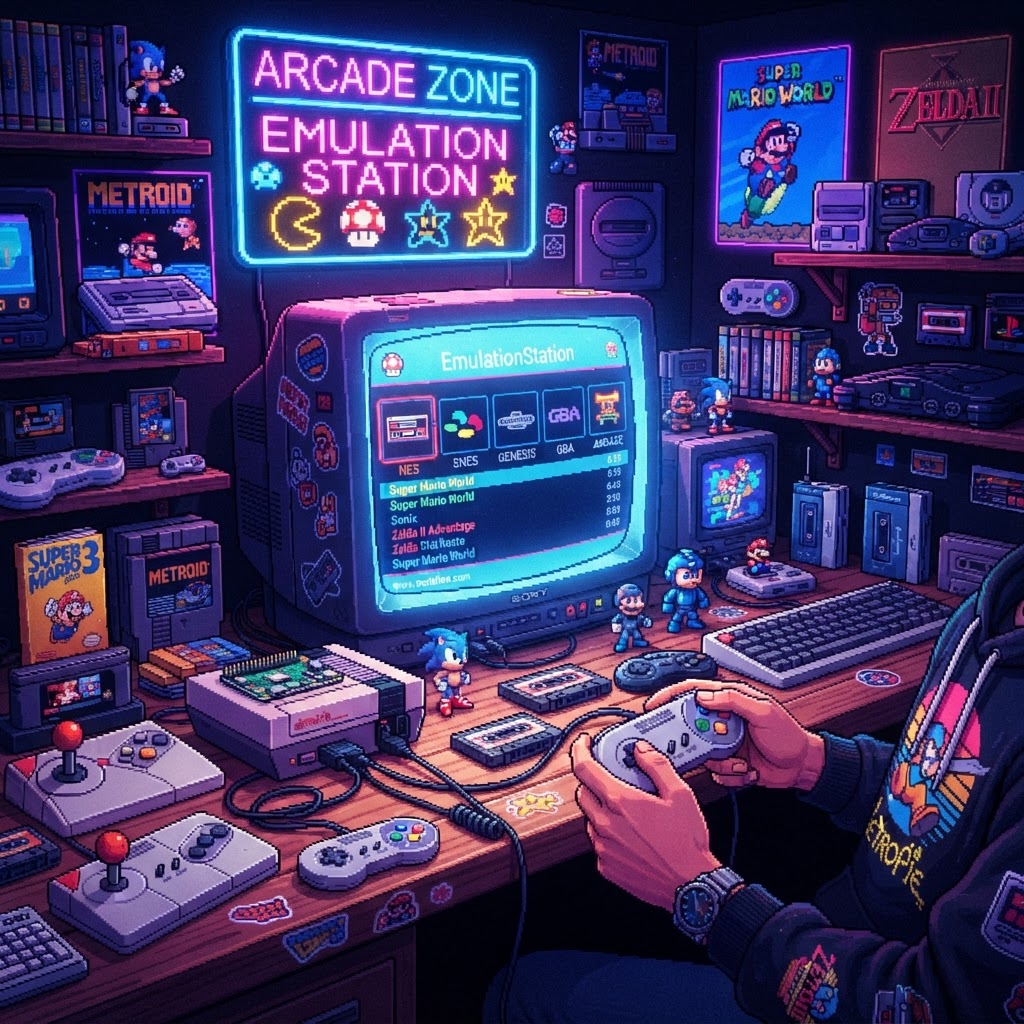
Why Build a Budget Retro Emulation Station?
Retro gaming is booming, but the price of original hardware is skyrocketing. A loose copy of Earthbound for SNES can cost hundreds of dollars. Authentic Neo Geo cartridges? Don't even ask. For budget-conscious gamers who want access to thousands of classic titles without selling a kidney, a DIY emulation station is the smartest move you can make in 2024.
The good news: you don't need expensive hardware or deep technical knowledge to get started. With the right approach, you can have a fully working emulation setup — covering everything from Atari 2600 to PlayStation 1 — for under $100. This guide walks you through every step, recommends the best value hardware, and shows you how to squeeze maximum performance out of minimal spending.
Step 1: Choose Your Emulation Hardware
Your hardware is the heart of your emulation station. Here are the best budget-friendly options ranked by cost and capability.
Option A: Raspberry Pi (The Classic Budget Choice)
The Raspberry Pi 4 (2GB model) remains the gold standard for budget emulation. Paired with RetroPie or Batocera (both free, open-source frontends), it can handle systems up to PlayStation 1, N64, and even some Dreamcast titles. A Pi 4 starter kit typically runs $50–$80 depending on the bundle.
Why it wins on budget: The software is free, the community is enormous, and spare parts are cheap. If something breaks, fixing it yourself with a Retro Console Repair Soldering Kit costs a fraction of buying new hardware.
Option B: Handheld Emulation Consoles (Best Plug-and-Play Value)
If you'd rather skip the DIY setup entirely, pre-loaded handheld emulators offer incredible value. Devices like the Anbernic RG35XX or Miyoo Mini+ come loaded with emulation software and cost $30–$60. A good Handheld Retro Gaming Console can handle NES, SNES, Game Boy, GBA, and Genesis without any configuration headaches.
Best for: Beginners, travelers, or anyone who wants retro gaming without a TV setup.
Option C: Old PC or Laptop Repurpose
Got an old Windows laptop collecting dust? Install RetroArch (free) and you've got an emulation station that rivals dedicated hardware. A machine with an Intel Core i3 and 4GB RAM can run most 16-bit and 32-bit systems flawlessly.
Step 2: Set Up Your Display
Your display setup dramatically affects the retro gaming experience — and it doesn't have to cost a fortune.
Using Your Existing TV
Most modern TVs work fine, but retro games were designed for CRT displays with specific scanline characteristics. To get the best image on a flat screen, enable integer scaling in your emulator settings and use a CRT shader in RetroArch. This is completely free and makes a huge visual difference.
Connecting Older Hardware to Modern Displays
If you're mixing original consoles with your emulation setup, you'll need the right adapters. A quality Retro Console HDMI Converter bridges the gap between classic AV output and modern HDMI inputs cleanly and affordably — far cheaper than buying an upscaler like the OSSC.
Projector Setup on a Budget
Want a big-screen retro experience without the price of a large TV? A budget 4K Retro Gaming Projector can project a 100-inch image for less than a comparable large-screen TV. Look for models with low input lag (under 30ms) specifically marketed for gaming use.
Step 3: Configure Your Software (Free Tools Only)
Here's the budget gamer's software stack — every tool listed is completely free:
- RetroPie — Best for Raspberry Pi; easy GUI, massive plugin library
- Batocera — Bootable from USB; works on PC, Pi, and Odroid devices
- RetroArch — Cross-platform core system; runs on everything from Android to Windows
- EmulationStation — Frontend interface that makes navigation feel polished
Key Settings to Configure First
- Shaders — Apply CRT or scanline filters for authentic visuals
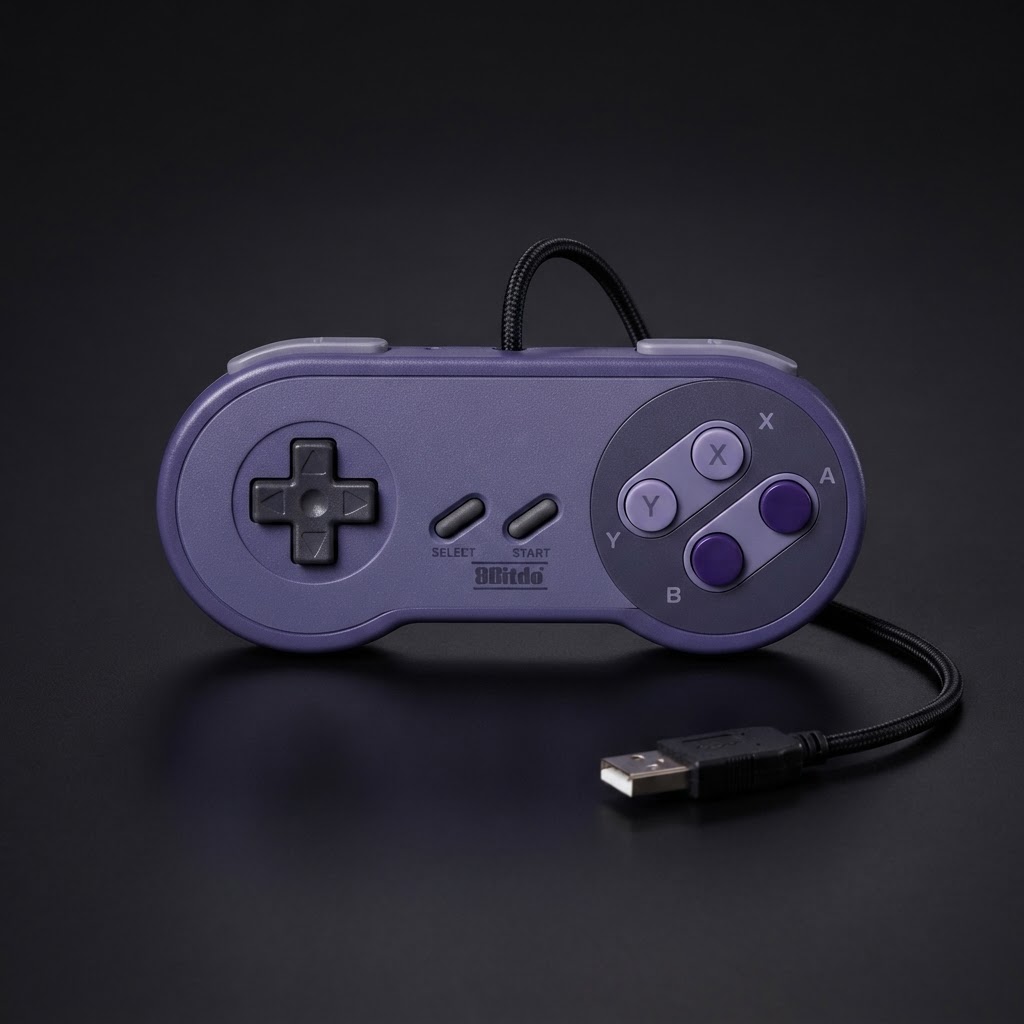
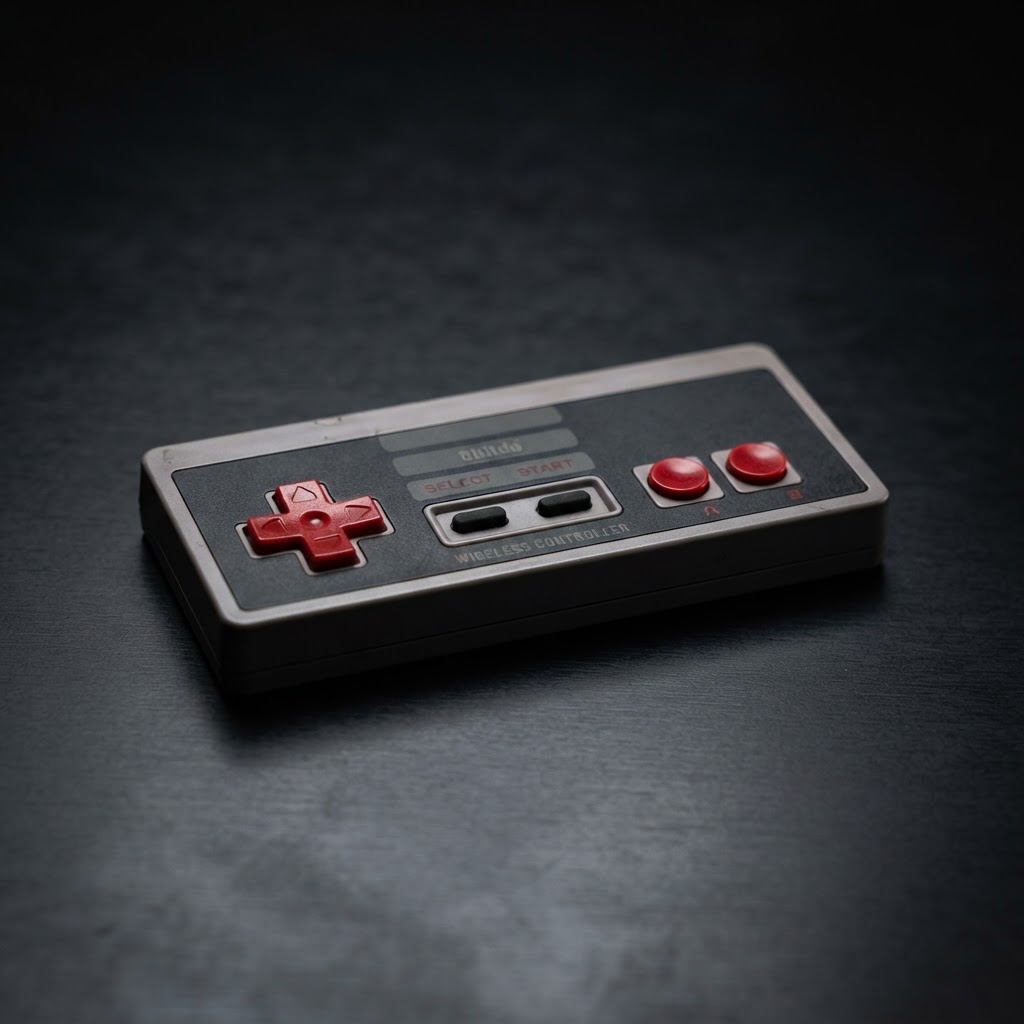
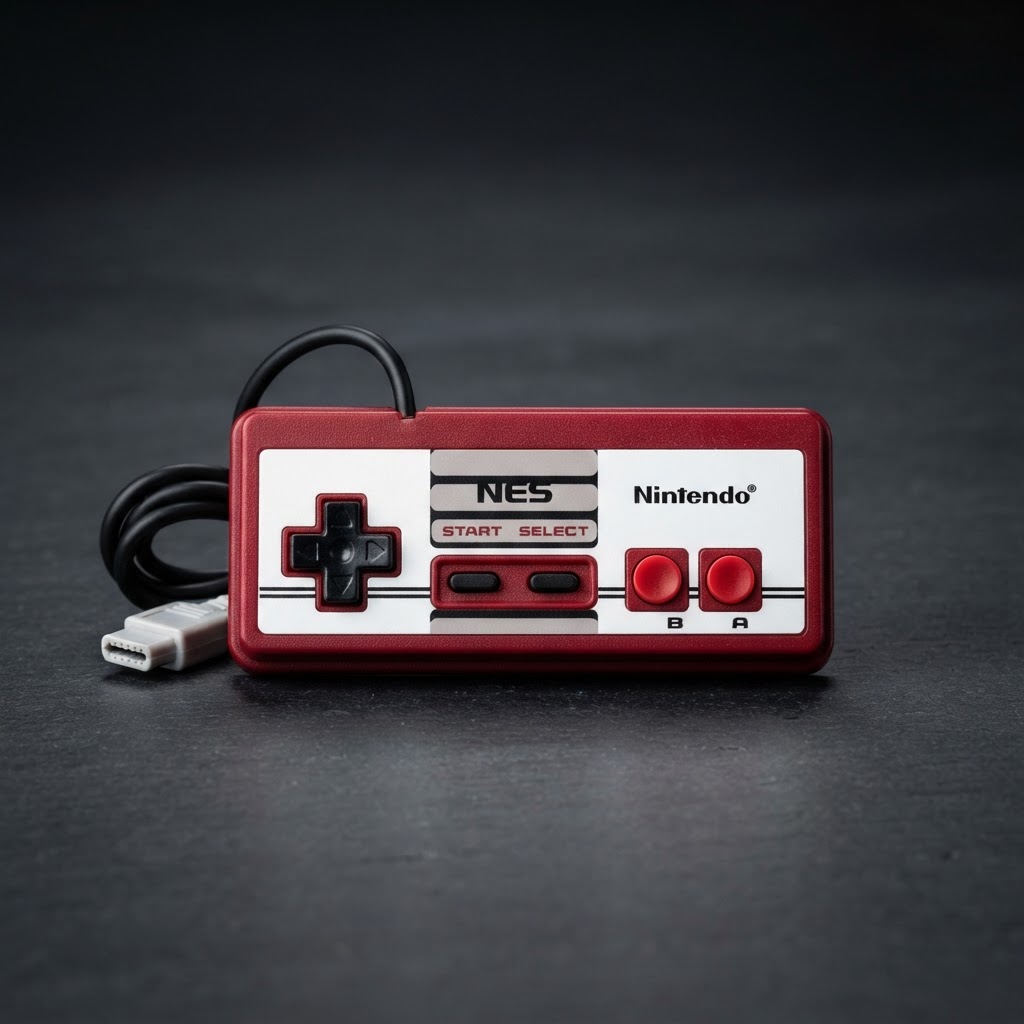
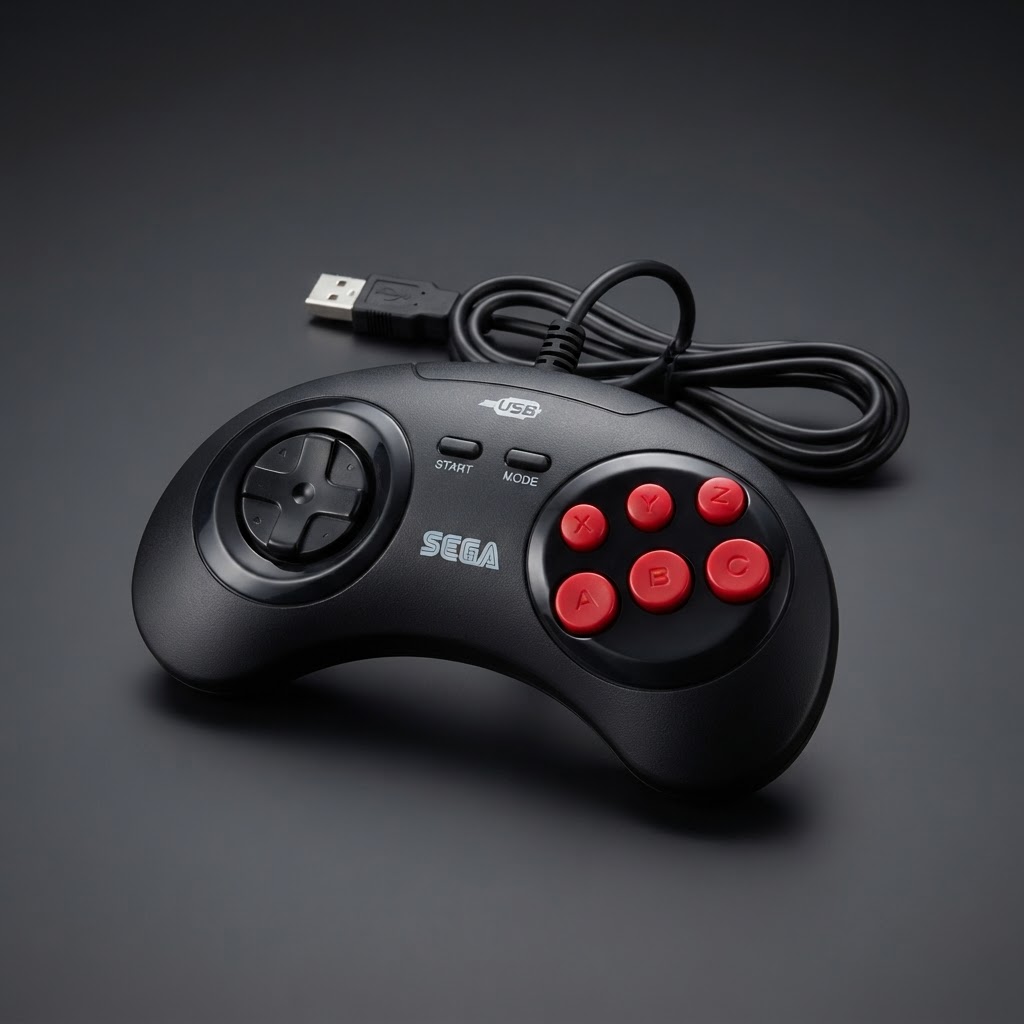
- Controller mapping — Map your USB gamepad correctly before loading ROMs
- Save states — Enable these immediately; they're a lifesaver
- Aspect ratio — Use 4:3 for all pre-PS2 content to avoid stretching
Step 4: Source ROMs Legally and Responsibly
This is where many guides skip important nuance. The legally safest approach is:
- Dump your own cartridges using a device like the GB Operator (for Game Boy) or Retrode (for SNES/Genesis)
- Use officially licensed collections — Many classics are available on Steam, GOG, or Nintendo Switch Online
- Public domain ROMs — Homebrew games and officially released free titles are 100% legal
Never download ROMs for games you don't own. Beyond legality, many ROM sites bundle malware.
Step 5: Set Up Your Physical Space
Your emulation station deserves a proper home. A clean, organized setup also photographs better for the 'gram — not that we're judging.
Display Your Setup With Style
An RGB LED Console Display Stand adds visual flair to your setup without costing much. Use it to display your Pi case, handheld devices, or original controllers as decorative pieces while keeping everything accessible.
Keep Your Screens Clean
It sounds minor, but a dedicated Retro Console Screen Cleaning Cloth for your handheld screens and TV makes a noticeable difference in image quality — especially if you're running 240p content where every pixel counts.
Budget Breakdown: What Does a Complete Setup Actually Cost?
| Component | Budget Option | Estimated Cost | |---|---|---| | Hardware | Raspberry Pi 4 (2GB) | $50–$80 | | MicroSD Card (64GB) | Samsung or SanDisk | $8–$12 | | Controller | 8BitDo Lite or USB gamepad | $15–$30 | | HDMI Converter (if needed) | Retro Console HDMI Converter | $10–$25 | | Display Stand | RGB LED Console Display Stand | $15–$30 | | Total | | ~$98–$177 |
For the absolute tightest budget, a pre-loaded Handheld Retro Gaming Console at $35–$50 is genuinely your best single-purchase option to start playing immediately.
Frequently Asked Questions
Is emulation legal? Emulators themselves are legal. ROM legality depends on ownership and jurisdiction — always consult local laws.
What systems can a Raspberry Pi 4 emulate? Atari, NES, SNES, Genesis, Game Boy, GBA, PS1, N64, and some PSP/Dreamcast titles with mixed results.
Do I need a powerful PC for emulation? No. Systems up to PS1 run on almost anything made after 2010. PS2 emulation (PCSX2) benefits from a stronger CPU.
Conclusion: Start Your Emulation Station Today
Building a retro gaming emulation station on a budget is more achievable than ever in 2024. Whether you go the Raspberry Pi route, repurpose an old laptop, or grab a plug-and-play Handheld Retro Gaming Console for instant gratification, the barrier to entry has never been lower. Thousands of classic games await — all without the inflated collector prices.
Pick your hardware, follow the steps above, and you'll be playing Chrono Trigger in bed tonight. Your 10-year-old self would be very proud.