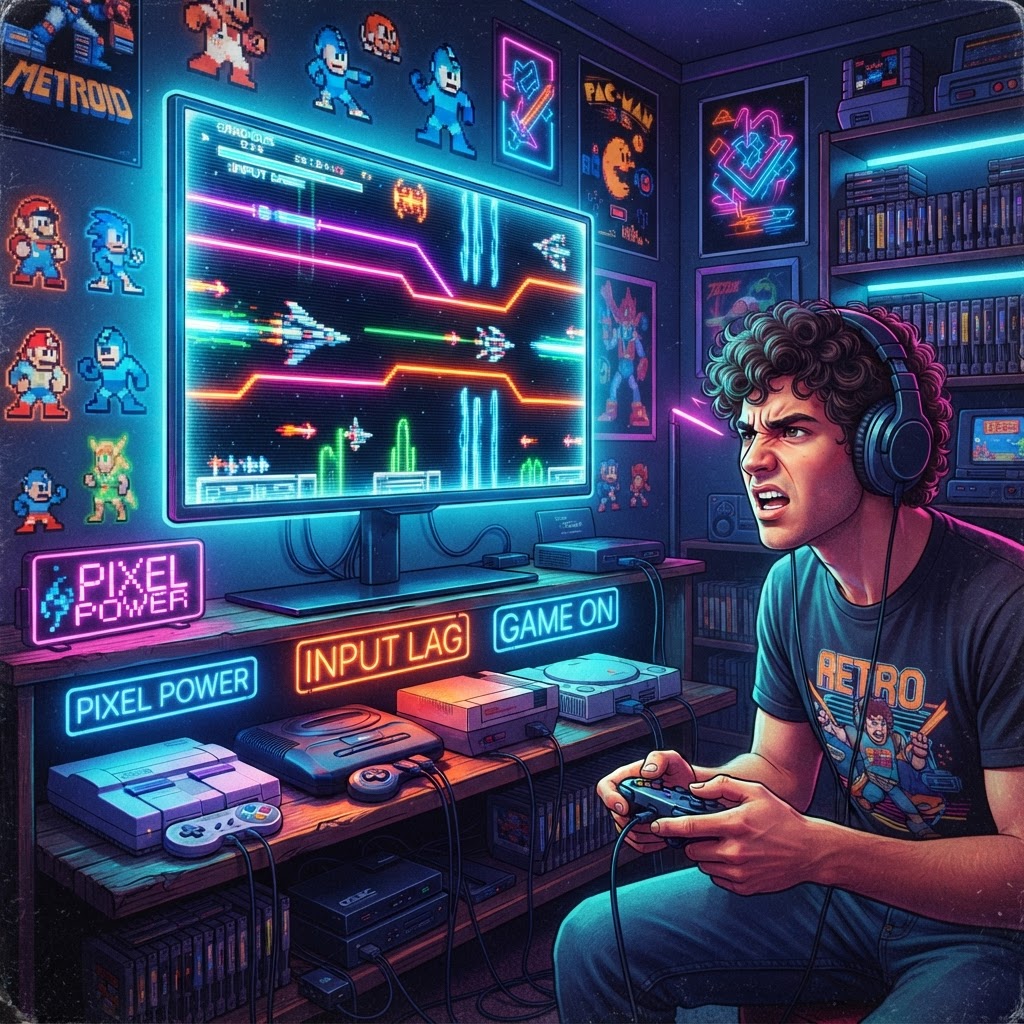
Why Input Lag Is a Big Deal for Retro Gaming
There's nothing quite like firing up a classic SNES game, nailing the timing on a jump — and missing anyway. Not because you're rusty. Because your TV added 80 milliseconds of invisible delay between your button press and what appeared on screen.
Input lag is the time gap between a controller input and the corresponding action displaying on your TV. For retro gaming, where games were designed around CRT televisions with near-zero display lag (typically 1–4ms), even 30–50ms of lag on a modern flat-panel TV can completely ruin the experience. Fast-paced platformers, fighting games, and rhythm games become genuinely unplayable.
The great news? You can dramatically reduce or eliminate input lag without buying a new TV or spending hundreds of dollars. This guide focuses entirely on budget-friendly fixes and gear that deliver real results for real retro gamers.
Step 1: Enable Game Mode on Your TV (It's Free)
This is the single most impactful thing you can do, and it costs absolutely nothing.
Modern TVs apply heavy post-processing to images — noise reduction, motion smoothing, upscaling algorithms — all of which add latency. Game Mode bypasses most of this processing, cutting lag from 80–120ms down to as low as 10–20ms on many budget TVs.
How to Find Game Mode:
- Samsung: Settings → Picture → Picture Mode → Game
- LG: Settings → All Settings → Picture → Picture Mode Settings → Game
- Vizio: Menu → Picture → Picture Mode → Game
- TCL Roku TV: Settings → TV Picture Settings → Picture Mode → Game
If your TV doesn't have a dedicated Game Mode label, look for settings to disable "Motion Smoothing," "TruMotion," "MotionFlow," or any noise reduction filters. Each one you turn off shaves off milliseconds.
Pro tip: Input lag databases like RTINGS.com measure the actual Game Mode lag for hundreds of TVs. A budget TCL or Hisense TV in Game Mode often beats expensive Sony models in non-Game Mode.
Step 2: Use the Right Cables and Connections
How you connect your retro console to your TV matters enormously.
HDMI Is Your Best Friend
If you're using an older console that only outputs composite (yellow RCA) or component (red/green/blue) video, you're adding conversion lag AND getting a poor image. A dedicated Component to HDMI Converter is one of the most affordable upgrades you can make — quality units run $15–$30 and properly convert your console's analog signal to HDMI without adding significant latency.
These converters work well with systems like the original PlayStation, N64, SNES, and Sega Genesis, giving you a cleaner signal path directly into your TV's HDMI port (which is processed faster than composite inputs on virtually every modern TV).
Avoid Composite at All Costs
Composite video (the single yellow RCA cable) not only looks terrible on modern TVs — the upscaling required to display it also tends to add more lag than component or HDMI connections. If your console supports component output, use it with a converter.
Step 3: Choose the Right TV for Retro Gaming on a Budget
You don't need a $1,000 gaming monitor. Here's what to look for in a budget TV:
Key Specs to Target:
- Game Mode input lag under 20ms — check RTINGS.com before buying
- 1080p resolution — cheaper to manufacture, less upscaling needed for retro content
- No mandatory HDR processing on low-res inputs — some TVs force HDR tone-mapping that adds lag
Budget TV Picks to Consider:
- TCL 4-Series (32"–43") — frequently under $200, Game Mode lag around 15–18ms
- Hisense A4 Series — excellent value, sub-20ms in Game Mode
- Vizio V-Series — solid budget performer, widely available refurbished
For a dedicated retro gaming setup in a bedroom or basement, a 32" 1080p budget TV is arguably the ideal format — smaller screens make pixel art look sharp and intentional rather than blurry.
Step 4: Keep Your Controllers and Gear in Top Shape
Lag doesn't just come from your TV. A poorly maintained controller can introduce its own response issues — sticky buttons, worn contacts, and unreliable wireless connections all cause missed inputs that feel exactly like lag.
Wireless Controller Tips:
- Keep controllers fully charged. Low battery levels can cause wireless transmission delays. A Dual Controller Charging Dock keeps your controllers topped up and ready, eliminating mid-session battery drops that mess with response times.
- For gaming on the go, a Portable Controller Charger Power Bank ensures you never game on a low battery again.
Wired Controllers Are Always Lag-Free
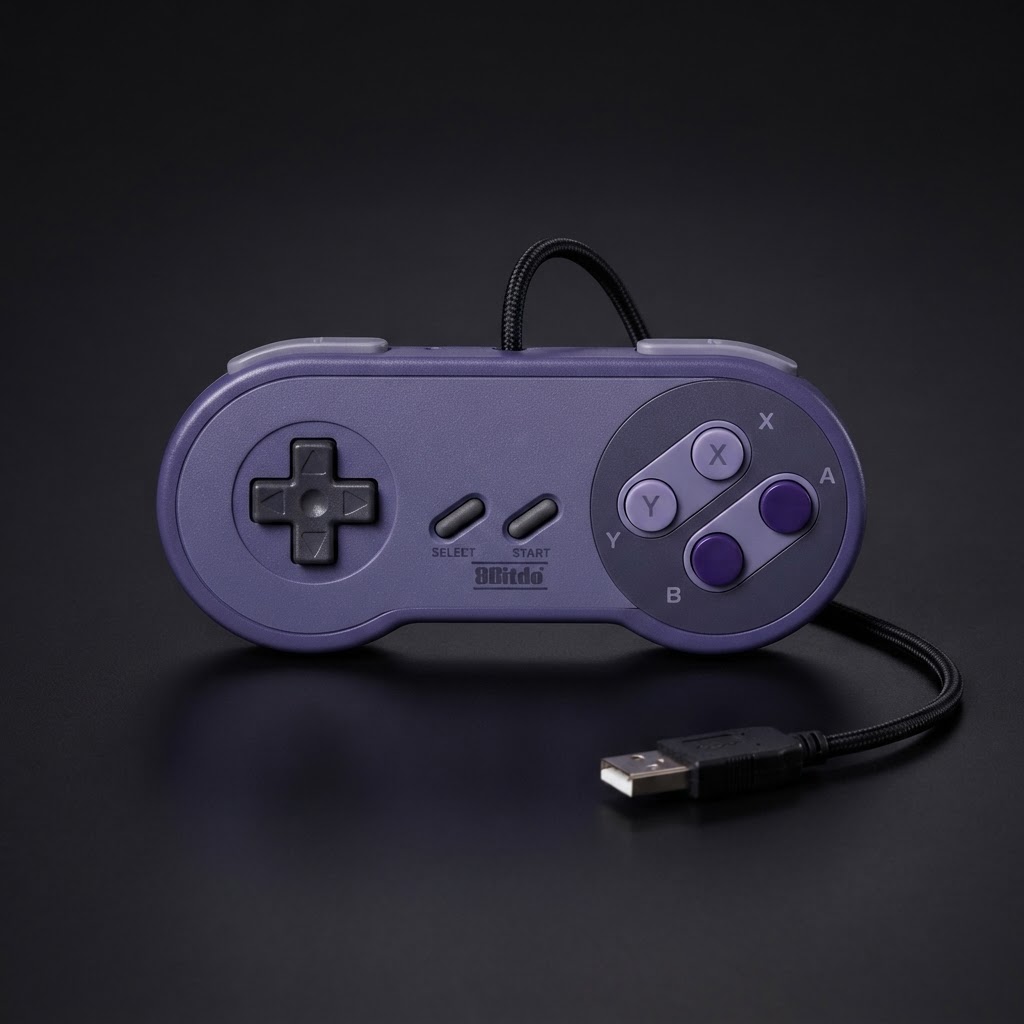
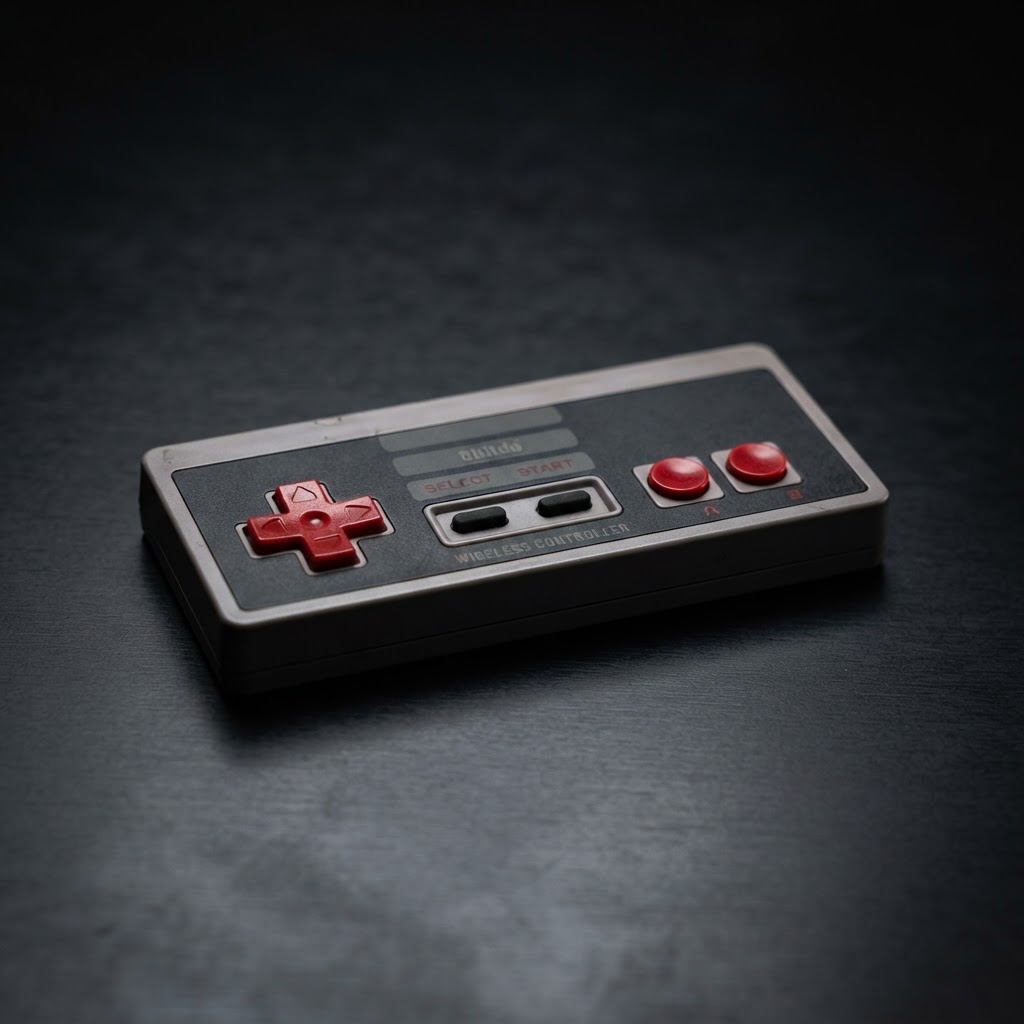
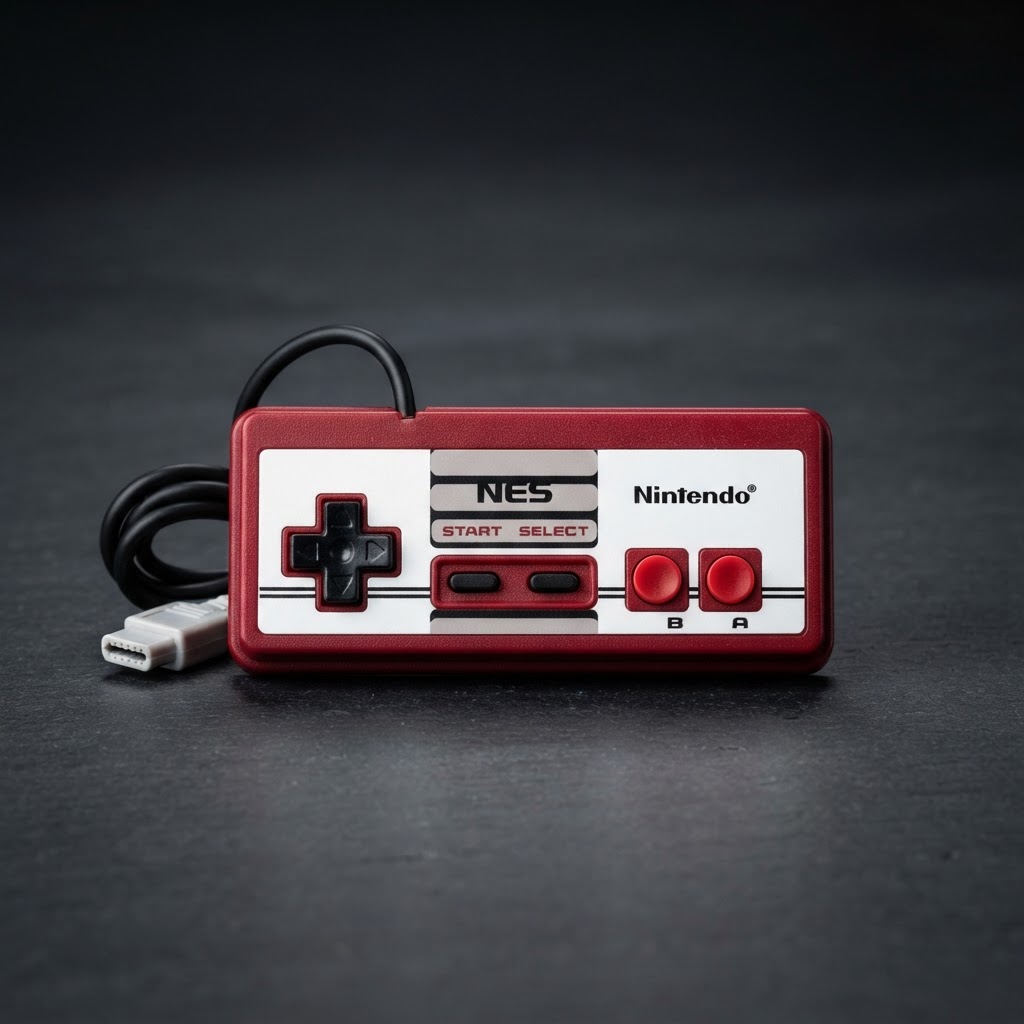
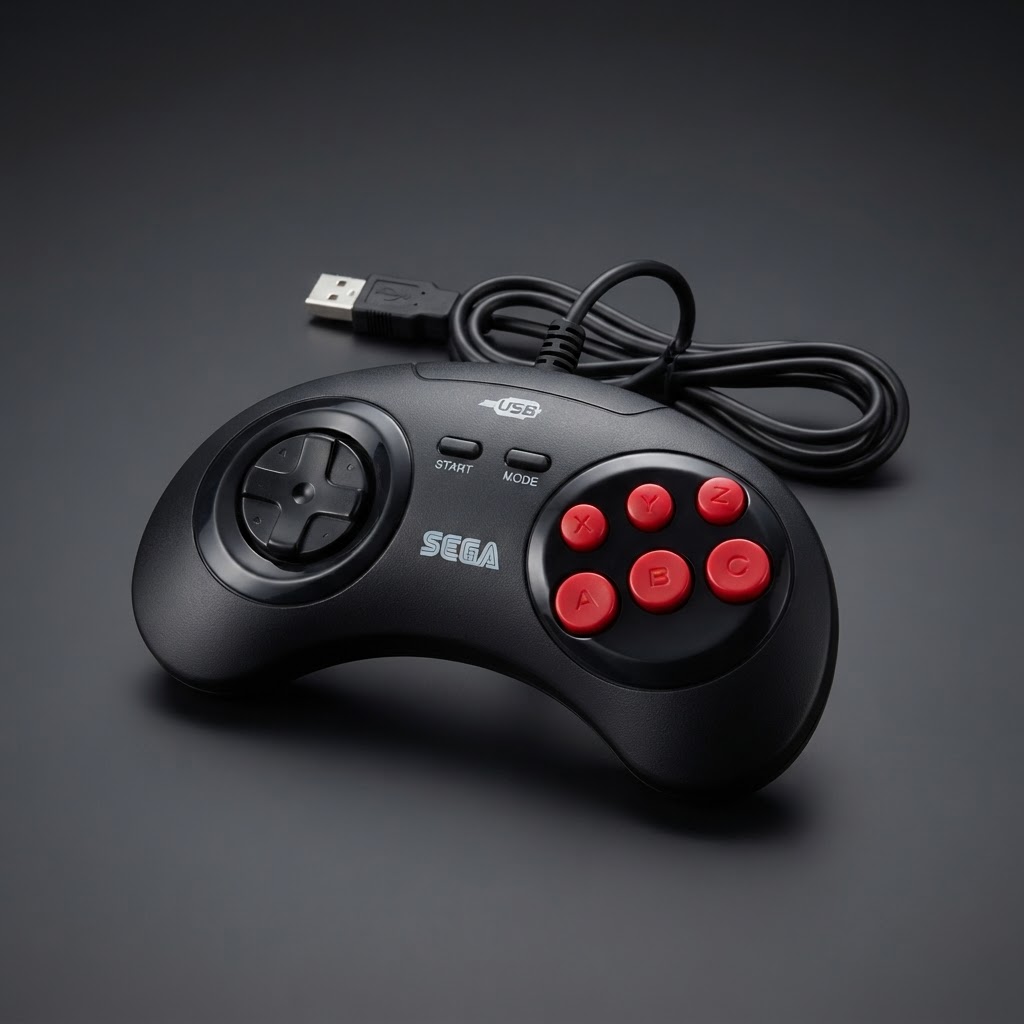
For absolute zero wireless latency, plug in a wired controller or an original-era controller via a USB adapter. Original NES, SNES, and Genesis controllers connected via USB adapters ($5–$10) give you the most authentic, lag-free input possible.
Keep Your Cartridges Clean
Bad cartridge connections cause games to freeze or behave erratically — which is often misdiagnosed as input lag. An Anti-Static Cartridge Cleaning Brush is a must-have for any cartridge-based system owner. Regular cleaning of your Game Boy, SNES, N64, or Genesis carts keeps connections solid and gameplay smooth.
Step 5: Consider a Budget Upscaler (Optional Advanced Step)
If you're serious about retro gaming and want the absolute best results, an upscaler converts your console's native signal to HDMI cleanly and quickly, bypassing your TV's internal processing entirely.
The Retrotink 2X Mini (~$30–40) is the most budget-accessible option and a genuine game-changer for NES, SNES, and Genesis owners. It line-doubles the signal and outputs clean 480p via HDMI with virtually no added lag.
This is optional for casual players but highly recommended for anyone playing precision games like Super Mario Bros., Street Fighter II, or Mega Man.
Step 6: Optimize Your Gaming Environment
Small environmental factors add up:
- Place the TV at eye level — reduces physical reaction time
- Minimize wireless interference — microwave ovens, baby monitors, and crowded 2.4GHz networks can interfere with wireless controllers
- Use the same HDMI port — some TVs process specific HDMI ports faster (often labeled "HDMI 1" or "ARC/eARC" ports). Test each one.
And hey — after all that optimization, you deserve to celebrate with a good cup of coffee. Treat yourself to a Retro Gaming Mug and enjoy that lag-free session properly.
Conclusion: Fast, Responsive Retro Gaming on Any Budget
Reducing input lag on a modern TV doesn't require expensive equipment. Enable Game Mode first — it's free and makes the biggest single difference. Then upgrade your connection with a Component to HDMI Converter, keep your gear maintained and charged, and consider a budget upscaler if you want to go deeper.
Retro games deserve to be played the way they were designed — with instant, responsive controls. Now go dust off those cartridges and enjoy the experience you've been missing.